


let’s work together




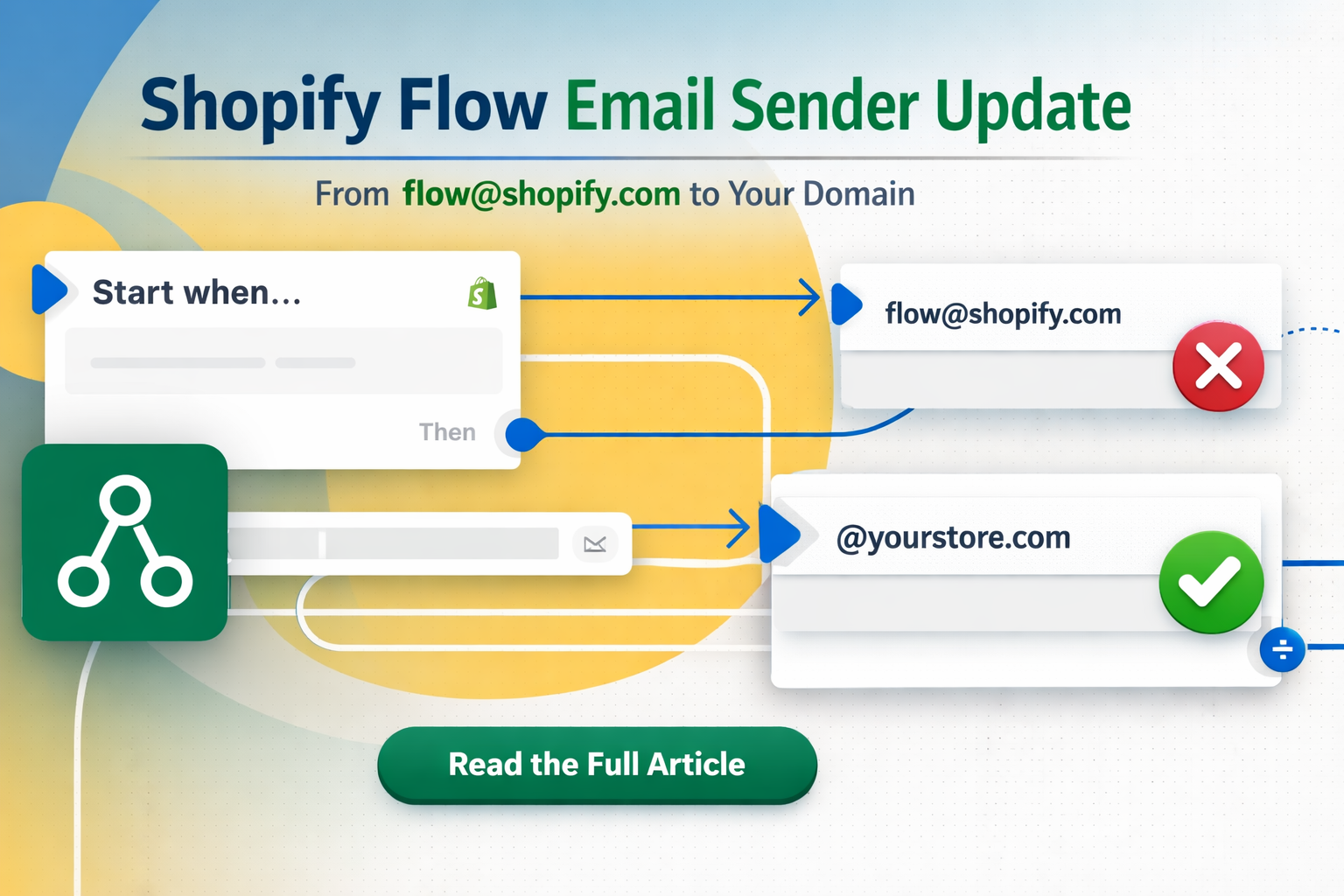
When Shopify updates Flow, many merchants pay attention only to new triggers or workflow actions.
But the January 2026 update to Shopify Flow’s email behavior, quietly changing how internal emails are sent, is one of the most significant improvements to automation reliability in years. (Shopify Changelog)
This article explains what changed, why it matters for deliverability and operations, and how you can make the most of it in your store.
Previously, the “Send internal email” action in Shopify Flow always used this generic address:
flow@shopify.com (Shopify Changelog)
That meant:
Now, Flow emails will show your store’s configured sender address in the From field. (Shopify Changelog)
This change updates both new workflows and existing ones automatically — but it doesn’t replace the need for proper email setup.
Email platforms use reputation signals — things like sender domain, authentication, and historical engagement — to decide whether to deliver a message to the inbox or spam folder. (Shopify)
If notifications come from a branded sender with proper authentication, they’re:
This matters for internal alerts that are mission-critical, like:
An alert that shows ops@yourstore.com is immediately recognizable and meaningful.
An alert from flow@shopify.com isn’t.
This clarity can:
Go to:
Shopify Admin → Settings → Notifications
Make sure the sender email address matches your brand or team address. (Shopify Changelog)
If this isn’t configured correctly, emails may still appear as generic or be marked as spam.
Email authentication (SPF, DKIM, DMARC):
Without it, even emails from your branded address might not be trusted. (Shopify Help Center)
Many teams create automation rules based on a known sender address. With this change, those filters may break unless updated to match the new/actual store email.
Shopify Flow has been evolving rapidly. Recent updates have made the editor more powerful, easier to use, and safer to test before publishing. (Shopify)
But this specific change — aligning internal emails with your store’s identity — affects workflow outcomes, not just creation mechanics. It strengthens the foundational trust that automation relies on.
If your store uses Flow for operational communications (alerts, summaries, exception reports), this update is a prompt to:
✅ Audit existing workflows
✅ Validate sender email settings
✅ Confirm domain authentication
✅ Update inbox rules and team procedures
If your workflows rely on external triggers or third-party email apps (like FlowMail for transactional emails), you’ll also want to ensure consistency between how those systems send mail and Shopify’s default settings. (Shopify App Store)
At KlayCreate, we specialize in:
If your automated emails are still landing in spam or your team isn’t acting on them, it’s usually a setup or deliverability issue — not a system flaw.
👉 Need help making Shopify automation reliable and trusted? Get in touch with KlayCreate.
